Planning Meetings Across Time Zones — How to Find the Right Time for Everyone
The Problem It Fixes
You need to schedule a meeting with people in New York, London, and Tokyo. You open your calendar, see your own available slots, and guess. You send a few options. Someone replies "that's 3 AM for me." You re-suggest. Someone else says "I have a conflict at that time." Three rounds of emails later, you've wasted an hour and a half just to find a 30-minute slot. This wasted time compounds with every additional person and time zone.
The core issue is that most scheduling tools show you your own calendar in your own time zone. They don't visualize the overlap across multiple zones at once. You end up doing mental timezone math at 10 PM trying to figure out if 9 AM EST is reasonable for someone in Singapore. It's not — that's 9 PM for them, which might be fine if they're a night person, but you can't know without context.
The Real Scenario
Take a distributed team of seven people spanning PST, MST, CST, EST, GMT, CET, and IST — that's seven time zones across North America, Europe, and India. The only way to find a meeting time is to plot all seven work-day ranges on a single timeline and look for the intersection. The time zone meeting planner does exactly this. You enter each person's time zone and their typical working hours, and the tool highlights the overlapping windows.
For this seven-person team, the intersection might be just two hours — from 14:00 to 16:00 UTC. That's 7 AM to 9 AM for the person in PST, 10 AM to 12 PM for EST, 3 PM to 5 PM for CET, and 7:30 PM to 9:30 PM for IST. Everyone can work within that window, but you'd never find it by eyeballing individual clocks.
How It Works
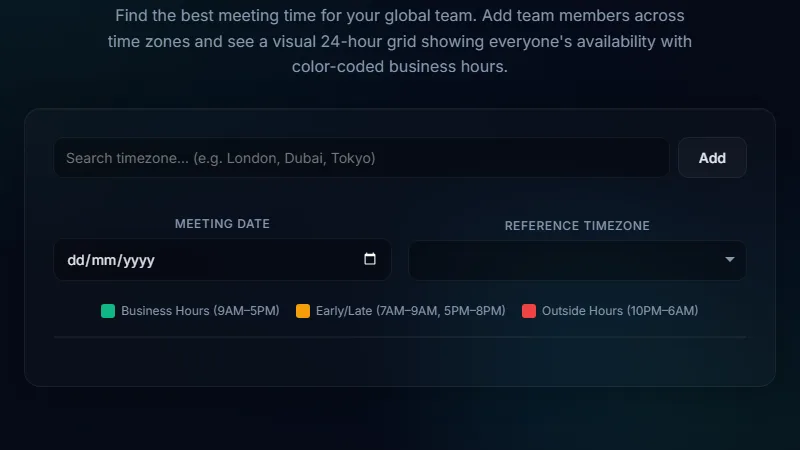
Open the meeting planner tool. Add each participant by selecting their time zone from the dropdown. You can set custom working hours for each person if their schedule differs from the typical 9-to-5. The tool displays a 24-hour timeline with colored bands for each person's available hours. The overlapping region — where all bands intersect — is highlighted in a distinct color.
You can remove or toggle participants on and off. If the full-team overlap is too narrow, you can experiment by excluding one person who might be flexible, or by suggesting an asynchronous handoff instead. The tool updates in real time as you adjust parameters.
EST overlap with London: 14:00-17:00 EST (London 18:00-21:00).
London overlap with Sydney: London 09:00-12:00 (Sydney 18:00-21:00).
Three-way overlap: 14:00-16:00 EST (London 19:00-21:00, Sydney 05:00-07:00 next day).
Sydney gets the worst of it — early morning. If that doesn't work, the tool makes it obvious immediately rather than after three email rounds.
Finding the Best Overlap Window for Remote Standups
Daily standups are the most common recurring meeting that struggles with time zones. A team with members in the Americas and Asia has almost no natural overlap. The tool reveals whether there's even a viable window — typically it's the start of the US workday and the end of the Asia workday. If the overlap is under 30 minutes, the team might switch to async standups via a Slack thread or a shared document.
When the tool shows a viable window, save that slot as a recurring event. The tool also accounts for daylight saving changes if you set it to the current date. Teams that meet at the same UTC time year-round avoid the semi-annual DST confusion entirely.
Coordinating Across Company Departments
Inter-departmental meetings are even harder because each department might have different core hours. Engineering might start late, sales might start early. The tool lets you set per-person working hours so you're not assuming everyone follows a standard schedule. When the product team in San Francisco needs to sync with the support team in Manila and the engineering leads in Berlin, the tool surfaces the true available windows — not the idealized ones.
In one real scenario, a company used the tool to find that the only overlap between their US East Coast sales team and their India development team was 8:00 PM to 9:00 PM IST — which is 10:30 AM to 11:30 AM EST. The sales team shifted their lunch break by 30 minutes to accommodate. Without the tool, that compromise would have taken weeks of negotiation to discover.
Limitations
The tool shows time zone overlaps based on the hours you input. It doesn't connect to your calendar, so it can't check whether someone actually has a free slot during the overlap — just whether they're theoretically within working hours. It also doesn't handle holidays or personal time-off, which vary by country and individual.
Time zones with half-hour or quarter-hour offsets (like IST at UTC+5:30 or Nepal at UTC+5:45) are fully supported, but the visual alignment on the 24-hour timeline can look slightly off if you're used to hour-aligned zones. The tool works best with 2-10 participants; beyond that, the overlap window becomes vanishingly small and the visual gets crowded.
FAQ
What if there's no overlap at all?
Some combinations genuinely have zero overlap — for example, US West Coast and East Asia. The tool will show this clearly (no highlighted intersection). In that case, consider async communication or rotating the meeting time so each person takes turns attending outside hours.
Does the tool handle daylight saving time?
Yes. Time zone offsets are based on IANA time zone data, which includes DST rules. The overlap adjusts automatically depending on whether the selected date falls in DST or standard time for each zone.
Can I save a meeting configuration?
There's no save feature. The tool is designed for quick, one-off scheduling. For repeat use, note the UTC time of the overlap and set your recurring meeting to that UTC time — it remains stable across DST changes.
What working hours should I use for each person?
Use their actual working hours, not the company's official hours. If someone typically starts at 10 AM and ends at 6 PM, use that. Accurate inputs produce accurate overlaps. Guessing produces useless results.
Is this better than World Clock meeting planners?
World clocks show you what time it is now in each zone. The meeting planner shows the overlap across a full 24-hour range for a given set of working hours. They serve different purposes — the planner is for finding a time, not checking what time it is right now.
Conclusion
Use the meeting planner any time you schedule a cross-time-zone meeting with two or more participants. It turns the frustrating back-and-forth of "what works for you?" into a single visual answer. The tool saves the most time when the group is diverse — three-plus time zones, non-standard hours, or distributed team structures.
Don't use it when all participants are in the same time zone — that's overkill. Also skip it for one-on-one meetings where a simple time conversion suffices. For those cases, a quick world clock lookup or the time duration calculator is enough.
← Back to Blog