Switching Between JSON, CSV, XML, and YAML — When to Use Each Format
The Problem It Solves
You have data in one format and you need it in another. Maybe you exported a CSV from a database and your API expects JSON. Maybe you have a YAML config file that needs to be flattened into CSV for a spreadsheet. Or maybe someone sent you XML and you need to extract fields without writing a parser. Every format has strengths, but they don't map cleanly onto each other. Nested objects in JSON become unreadable in CSV. XML attributes don't exist in YAML. The conversion tool bridges these gaps without you needing to understand each format's parser.
The Real Situation
A startup's data pipeline ingests customer data from a third-party API that returns XML. Their analytics team works in CSV. Their service configuration uses YAML. Their frontend communicates in JSON. Every week someone manually converts data between these formats, introducing errors — a field dropped here, an encoding issue there. One time, a nested address object in the XML got flattened into a single CSV column as "[object Object]" and it took three days to trace the bug.
The converter tool handles the translation in a deterministic, repeatable way. Paste XML in, get CSV out. Paste JSON in, get YAML out. The tool shows you exactly how each field maps, so you can verify the conversion before using the result downstream.
How It Works
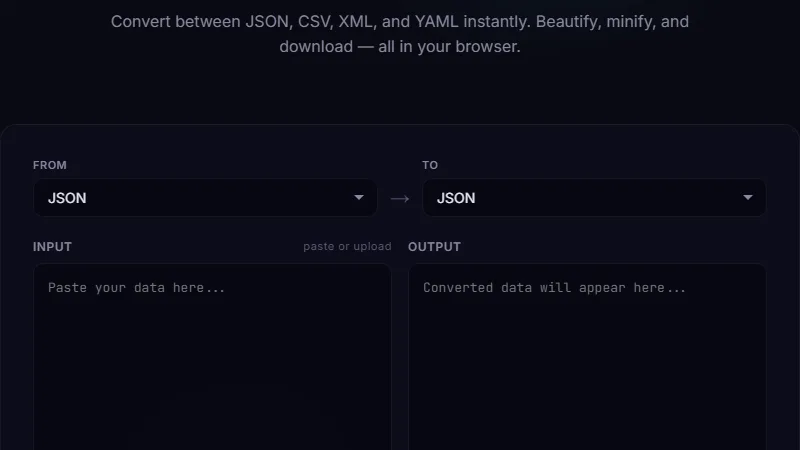
Open the converter. Paste your source data into the left panel. Select the source format (JSON, CSV, XML, or YAML). Select the target format. The right panel updates with the converted output in real time. If the source has nested structures — for example, a JSON object with arrays of objects — the tool flattens them into CSV columns using dot notation (like address.city, address.zip). When converting to JSON or YAML, it re-expands those paths back into proper nesting.
The tool also validates your input. If your CSV has mismatched column counts or your JSON has a trailing comma, it shows an error and highlights the problem area. You don't get garbage output — you get nothing until the input is valid.
[{"name":"Alice","role":"Engineer","skills":["Python","Go"]},{"name":"Bob","role":"Designer","skills":["Figma","CSS"]}]Converted to CSV:
name,role,skills.0,skills.1Alice,Engineer,Python,GoBob,Designer,Figma,CSSConverted to YAML:
- name: Alice
  role: Engineer
  skills:
    - Python
    - Go
Migrating API Data Between Services
This is the most common conversion scenario. Service A exposes a JSON API. Service B accepts XML. Instead of writing a middleware adapter, you can manually convert samples during development and hardcode the translation logic once you know the field mapping. The tool helps you explore how fields map between formats without writing throwaway scripts. Service A's nested JSON object for "shipping_address" becomes a dotted field shipping_address.line1 in CSV and a nested <shipping_address><line1> element in XML.
During the migration, you can also validate that no data is lost. Convert the JSON to XML, then convert the XML back to JSON and compare. If the round-trip produces the same keys and values, the formats are compatible. If something drops (like the distinction between XML attributes and elements), the round-trip reveals it immediately.
Preparing Configuration Files for Deployment
Infrastructure teams often receive configuration in one format and need it in another. Developers write configs in YAML because it's human-readable with comments. Deployment pipelines sometimes require JSON because the orchestration tool parses it natively. The converter preserves the structure, including nested keys and arrays, so the deployed config behaves identically to the development version.
The key consideration here is that YAML supports comments and JSON doesn't. When converting YAML to JSON, comments are stripped. The tool warns about this but the loss is unavoidable — JSON has no comment syntax. If comments are critical, keep a YAML source and convert to JSON only at deploy time, discarding the JSON after use.
Limitations
CSV has no concept of nesting. Converting deeply nested JSON or XML to CSV forces flattening, which creates wide rows with many columns and ambiguous column names. Arrays become numbered columns (tags.0, tags.1), which is brittle if the array length varies between rows. Converting back from CSV to JSON loses the array structure — you get a flat object with numbered keys instead of a proper array.
XML attributes (like <item id="123">) are converted to regular fields with an @ prefix in JSON/YAML (@id). Some XML schemas rely heavily on attributes, and the conversion can produce awkward key names. The tool handles attributes correctly, but you need to know they become prefixed keys in the output.
Large files (over 1 MB) may cause browser performance issues since all processing happens client-side. For bulk conversions, a server-side script is more appropriate.
FAQ
Does the tool handle XML namespaces?
Yes. Namespace prefixes are preserved in the output keys. For example, <ns:item> in XML becomes ns:item in JSON and YAML. The tool doesn't resolve namespace URIs — it treats them as part of the key name.
What happens when CSV has quoted fields with commas?
The tool follows RFC 4180 rules. Fields enclosed in double quotes are treated as single values. Commas inside quoted fields don't break the column alignment. If your CSV uses a different quoting convention, pre-process it to match RFC 4180.
Can I convert CSV with headers to JSON?
Yes. The first row of the CSV is treated as headers and becomes the JSON object keys. Each subsequent row becomes one JSON object in the output array. This is the most common CSV-to-JSON use case.
Does the tool support pretty-printing?
JSON and YAML outputs are pretty-printed by default (indented). CSV is always flat. XML is indented. There's no minification option — the tool prioritizes readability over compactness.
How are dates handled?
Dates are treated as plain strings. The tool doesn't apply date formatting or timezone conversion. If your source has ISO 8601 strings, they stay as ISO 8601 strings in the output. No automatic parsing or transformation is applied.
Conclusion
Use this converter when you need to translate data between formats for integration, migration, or configuration tasks. It's best for one-off conversions, small-to-medium files, and exploring how structures map between formats. The real-time preview and validation make it faster than writing conversion scripts for ad-hoc tasks.
Don't use it for large-scale ETL pipelines (use a proper data processing tool), for binary data serialization, or when you need to preserve XML comments or processing instructions — those are not part of the standard format specifications and are dropped during conversion.
← Back to Blog