Base64 Encoding and Decoding — When and Why You Need It
The Problem It Solves
Binary data and text don't travel well together. If you've ever tried to paste an image directly into a JSON field, or send a file through a plain-text protocol like email, you've hit the wall: most communication channels expect text, not raw bytes. Base64 bridges that gap by converting any binary data — images, PDFs, audio files, encryption keys — into a safe string of common ASCII characters. It's not encryption, it's not compression, and it's not magic. It's a straightforward encoding scheme that turns bytes into characters that survive any text-based transport without corruption.
The Real Problem
Email was designed for text. HTTP was designed for text. JSON, XML, YAML, CSV — all text formats. But the modern web runs on images, file uploads, API tokens, and cryptographic signatures, all of which are binary. When you attach a photo to an email, it has to survive the journey through multiple mail servers that might interpret certain byte sequences as control characters. Without encoding, a byte with the value 0xFF might get mangled by a server that expects 7-bit ASCII. The same happens when you embed an image in an HTML page as a data URI, or send a binary payload in a JSON API response.
Base64 solves this by representing every 3 bytes of binary data as 4 printable ASCII characters. It uses A-Z, a-z, 0-9, +, and /, plus = for padding. These 65 characters are universally supported across every system and protocol. The cost is size: Base64 increases data size by roughly 33% (3 bytes become 4). But the trade-off is reliability — your data arrives exactly as sent, every time.
How the Tool Works
Open the Base64 encoder decoder. You'll see two panels side by side: plain text input and Base64 output. Type or paste text into the left panel, and the encoded version appears instantly on the right. Switch to decode mode and paste a Base64 string on the right to see the decoded plain text on the left. The tool also supports file upload — drag and drop an image or document, and it encodes the entire file to Base64. This is useful for embedding files in data URIs or transmitting them through text-only APIs. A copy button on each panel lets you grab the result with one click.
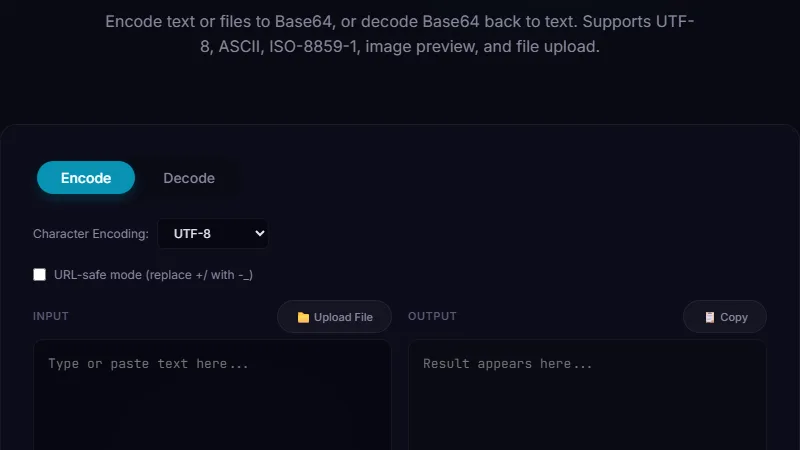
Input: Hello, World!
Output: SGVsbG8sIFdvcmxkIQ==
Decode back: Paste SGVsbG8sIFdvcmxkIQ== and click Decode → "Hello, World!"
The == padding at the end tells you the original input had 2 bytes of padding (the input wasn't a multiple of 3 bytes).
Embedding Images in HTML with Data URIs
Web developers often need to embed small images directly in HTML or CSS to avoid extra HTTP requests. Tools like icons, logos, or inline SVGs can be encoded to Base64 and placed directly in a <img src="data:image/png;base64,..."> tag. This eliminates a network round trip, which is valuable for performance-sensitive pages like landing pages or email templates. The tool makes this trivial: upload the image file, copy the Base64 string, and paste it into your src attribute. For a 16x16 icon (roughly 1KB as PNG), the Base64 string adds about 1.3KB to your HTML. For larger images, the overhead makes data URIs impractical — you're better off serving them as separate files that browsers can cache independently. A good rule of thumb: use Base64 embedding only for images under 2KB. The tool's file upload mode shows you the encoded size so you can make the call.
API Token and Binary Payload Transmission
APIs that need to transmit binary data — cryptographic keys, digital signatures, authentication tokens — almost always use Base64 encoding. JWT (JSON Web Tokens) are Base64-encoded JSON payloads. SSH public keys are Base64-encoded binary blobs. Many REST APIs expect file uploads to be sent as Base64 strings inside JSON rather than as multipart form data. A developer building a file-sharing API might accept uploads as Base64 in a JSON payload like {"filename": "report.pdf", "data": "JVBERi0xLjcN..."}. This avoids the complexity of multipart encoding and works across any HTTP client. The tool lets you test this workflow: upload a small file, copy the Base64 output, and paste it into your API payload. For decoding, paste the Base64 string from your API response and download the decoded file to verify it matches the original.
Limitations
Base64 increases data size by about 33%, making it unsuitable for large file transfers. A 10MB image becomes 13.3MB of text. If bandwidth or storage matters, use binary transfer methods (multipart uploads, direct file streaming) instead of Base64. The tool handles text and small-to-medium files well, but very large files (over 50MB) may cause browser memory issues. Base64 is not encryption — anyone can decode it instantly. Never use it to protect sensitive data. Use proper encryption (AES, RSA) for security. The tool operates entirely client-side, so your data never leaves your browser, but the encoding itself provides zero confidentiality.
FAQ
Is Base64 the same as encryption?
No. Base64 is an encoding scheme, not encryption. Anyone who sees a Base64 string can decode it instantly with any number of free tools. It's designed for data transport safety, not data confidentiality. If you need security, encrypt the data first, then encode the encrypted bytes with Base64 for transport.
Why does Base64 output sometimes end with = or ==?
The = characters are padding. Base64 converts 3 bytes of input into 4 output characters. If the input isn't exactly a multiple of 3 bytes, padding is added: one = for 1 remaining byte, two == for 2 remaining bytes. The padding ensures the output length is always a multiple of 4 characters, which some parsers require.
Can I Base64-encode an image and put it in CSS?
Yes — CSS supports data URIs with Base64 in url() functions: background-image: url('data:image/png;base64,iVBOR...'); This is common for small icons and sprites. The same size trade-offs apply: good for small assets, bad for large ones that can't be cached separately from the stylesheet.
Does Base64 work for non-English text like Chinese or Arabic?
Yes. Base64 operates on bytes, not characters. The tool encodes the UTF-8 bytes of any text, regardless of language. Chinese characters take 3 bytes each in UTF-8, so they'll encode to 4 Base64 characters per character. The decode step restores the original UTF-8 text perfectly.
What's the difference between Base64 and Base64URL?
Standard Base64 uses + and / characters, which need URL-encoding in URLs (they become %2B and %2F). Base64URL is a variant that uses - and _ instead, making it safe for URLs and filenames without additional encoding. The tool uses standard Base64. For URL-safe encoding, use the URL encoder decoder tool after Base64 encoding, or check if your application supports Base64URL natively (many JWT implementations do).
Conclusion
Use the Base64 encoder decoder whenever you need to move binary data through a text-only channel. It's essential for embedding images in HTML/CSS, transmitting binary payloads through JSON APIs, and working with authentication tokens and cryptographic keys. Don't use it for large file transfers (the 33% overhead adds up fast), for data that needs actual encryption, or when the receiving system natively supports binary transfer. For related encoding needs, the URL encoder decoder handles percent-encoding for query parameters, and the JSON CSV XML YAML converter handles structured text format conversions.
For related data transformation needs, check out the URL encoder decoder for percent-encoding query parameters and the color converter for working with color codes in web projects.
← Back to Blog